Storing file in Digitalocean spaces
Digital Ocean Spaces is a service much like AWS S3 that allows users to save files. Spaces uses an API that mirrors that of S3 means it is 100% compatible with AWS S3. Spaces have a built-in CDN that makes data storage and delivery easy, reliable and affordable.
The price? DO Spaces offer $5 per month, you get 250GB of storage and 1TB of bandwidth included. Extra storage costs is $0.02 per GB and additional bandwidth is just $0.01 per GB. It is very affordable cloud file storage provided by Digital Ocean compared to Amazon S3. If budget are your concern, DO Spaces are good to go.
Setting Up
Out of the box, Laravel provides support for S3 and the DO Spaces has a S3 compatible API for the flysystem driver. So, make sure you have already pulled in the FlySystem S3 drivers into your Laravel project. If not, install below package.
> composer require league/flysystem-aws-s3-v3Creating Spaces
Creating your first Space automatically starts your Spaces subscription. Your subscription automatically ends when you destroy all of your Spaces. You can create a Space at any time from the Create menu by selecting Spaces and it will take you to the Create a Space page. You may follow the steps below:-
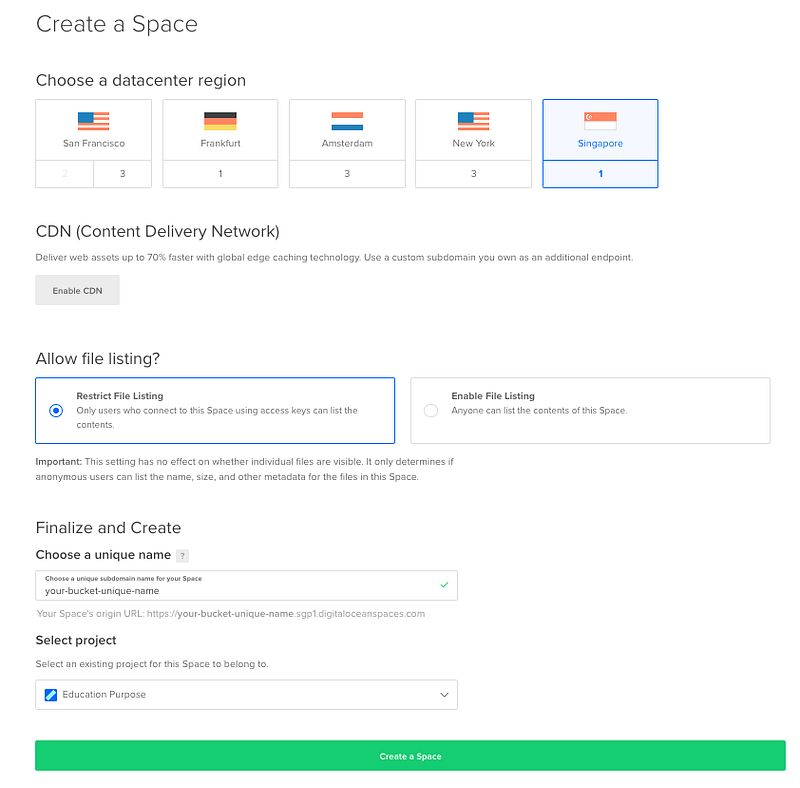
- Choose a datacenter region. The datacenter region you choose will also become part of a Space’s endpoint URL. See regional availability for Spaces for more information on the available options.
- Optionally, enable the Spaces CDN (Content Delivery Network). If you click Enable CDN, you can customize the Edge Cache TTL, which is the amount of time the edge servers will cache your content.
- Choose to restrict file listing or enable file listing. The visibility of a Space’s file listing has no effect on the visibility of the files themselves. You can change the file listing visibility at any time after creation.
- Choose a unique name for your Space. The name of the Space makes up part of its endpoint URL and cannot be changed once it is created. Please choose a unique name. Same rules as Amazon S3.
- Select a project to add the Space into.
After choosing your settings, click Create a Space. This will take you to the newly-created Space’s Files tab, which displays the files and folders in its root.
Next, you need to create new Personal Access Token to access Spaces API. Click on Generate New Token.
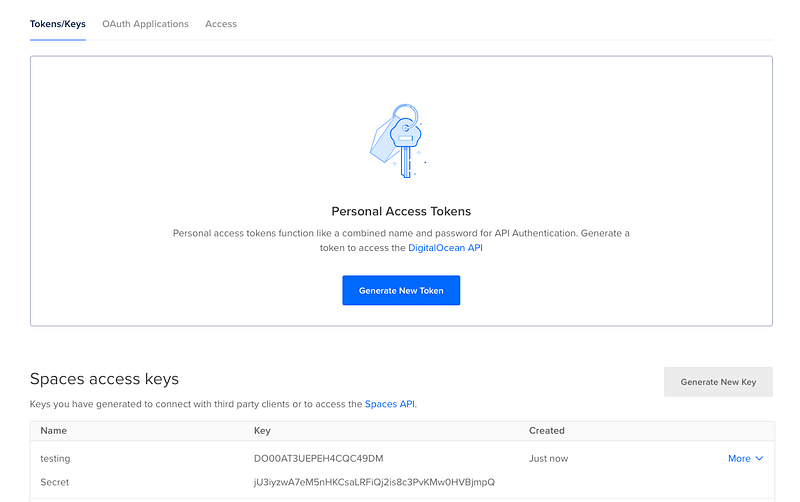
After creating a key, make sure you copy the secret key immediately because it would never show next time.
Next, we can continue to setup Space storage driver in Laravel.
Setup Space Storage driver
Since Spaces compatible with S3 API, we can create a configuration for it using the S3 driver but providing different variable values.
Go to config folder and inside filesystems.php. You will see S3 config in disks array.
's3' => [
    'driver' => 's3',
    'key' => env('AWS_ACCESS_KEY_ID'),
    'secret' => env('AWS_SECRET_ACCESS_KEY'),
    'region' => env('AWS_DEFAULT_REGION'),
    'bucket' => env('AWS_BUCKET'),
    'url' => env('AWS_URL'),
    'endpoint' => env('AWS_ENDPOINT'),
    'use_path_style_endpoint' => env('AWS_USE_PATH_STYLE_ENDPOINT', false),
    'throw' => false,
],
All we need is duplicate the S3 config and rename the key and environment value to use DO Space config.
'spaces' => [
    'driver' => 's3',
    'key' => env('SPACES_ACCESS_KEY_ID'),
    'secret' => env('SPACES_SECRET_ACCESS_KEY'),
    'region' => env('SPACES_DEFAULT_REGION'),
    'bucket' => env('SPACES_BUCKET'),
    'url' => env('SPACES_URL'),
    'endpoint' => env('SPACES_ENDPOINT'),
    'use_path_style_endpoint' => env('SPACES_USE_PATH_STYLE_ENDPOINT', false),
    'throw' => false,
],
Then, we add the corresponding variable in .env file
SPACES_ACCESS_KEY_ID=XXXXXXX
SPACES_SECRET_ACCESS_KEY=XXXXXXXXXXXX
SPACES_DEFAULT_REGION=sgp1
SPACES_BUCKET=your-space-bucket-name
SPACES_ENDPOINT=https://sgp1.digitaloceanspaces.com
SPACES_USE_PATH_STYLE_ENDPOINT=false
You may get Secret Key and Access Key from the key you created earlier. For region, you may check the spaces link.
At this point, the setup should be ready. You now free to use your new DigitalOcean spaces driver in your Laravel app. You may call the Storage facade with pointing new disk :-
Storage::disk('spaces')->put('uploads/image.jpg', request()->file);Or you may wish to make it as default driver, set in config/filesystems.php. And you may call without set the disk
Storage::put('uploads/image.jpg', request()->file);By default, for security reason, all the files stored are private. If you wish to store as public,
Storage::putFile('uploads', request()->file, 'public');You may test your read / write file to your spaces and you should see the file uploaded successfully
References
Found this helpful?
If this article saved you time or solved a problem, consider supporting — it helps keep the writing going.
Originally published on Medium.
View on Medium