Implement Google ReCaptcha v2 in Laravel

What is Google’s ReCaptcha?
Google ReCaptcha is a Turing test system to protect a website or app from fraud and abuse without creating friction with the program. ReCaptcha uses advanced risk analysis and adaptive challenges to keep malicious software from engaging in abusive activities on your websites and applications
By implementing ReCaptcha, websites are protected from unwanted robot scripting. Users can continue to use the website or application such as making purchases, viewing pages or creating accounts and users who are unable to complete challenges will not be able to continue and will be blocked.
Implement in Laravel
Well, in this experiment we will try to add Google ReCaptcha to a login form without using any package. I will show how to implement reCaptcha V2 with checkbox challenge.
If you notice that Google Recaptcha also have V3. The different between this version is just the human-interaction involvement. V2 requires the user to click the “I’m not a robot” checkbox and can serve the user an image recognition challenge while V3 runs in the background and generates a score based on a user’s behaviour. The higher the score, the more likely a user is human.
Here are the steps for V2:
- Create a reCaptcha V2 account
- Add keys to config file
- Implement reCaptcha scripting at Login page
- Create a Laravel Rule
- Add Validation rule to Login logic
- Testing and validation
Lets get started
Create a reCaptcha account
In this step we need to set google site key and secret key. If you don’t have it, we must first register a new site at this link before we can use Google ReCaptcha.
Skip this step if you already create one.
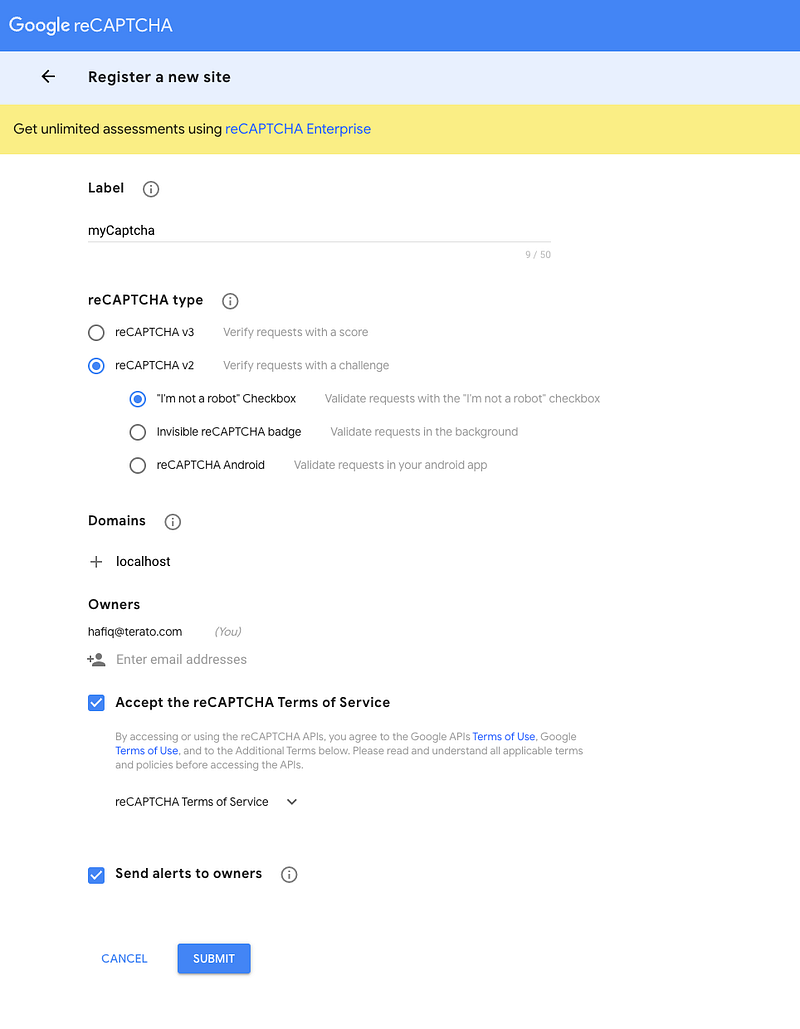
You can put any label you desired as long as you remember. For the reCaptcha type, please choose V2 and “Im not a robot” Checkbox since we want the user to click at the checkbox. For the domains, if you are developing in the localhost, put “localhost” or “127.0.0.1”. The rest, it’s up to you who you want to assign. Then, submit the form.
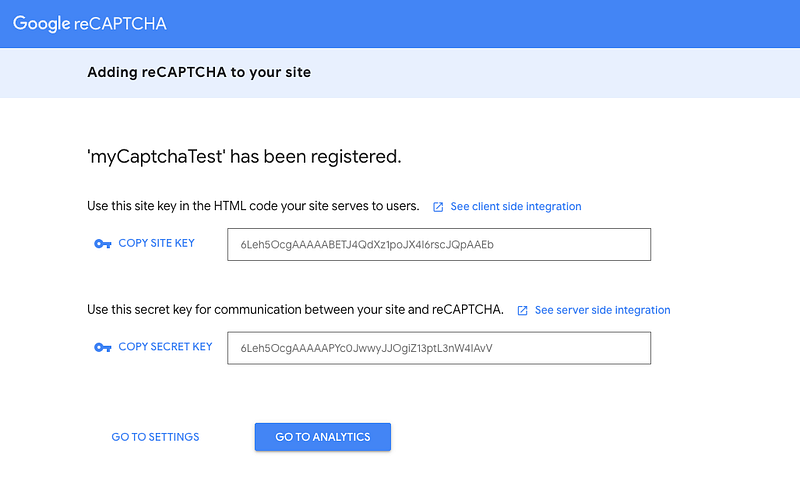
After completing the registration process and clicking submit, we will be given a Site Key and Secret Key as shown in the image above. Save the the keys in the .env file later in the next step.
GOOGLE_RECAPTCHA_SITE_KEY=XXXX
GOOGLE_RECAPTCHA_SECRET_KEY=XXXX
Add keys to config file
Find a config file name services.php and add new lines with below code
<?php
return [
    ...
    'recaptcha' => [
        'site_key' => env('GOOGLE_RECAPTCHA_SITE_KEY'),
        'secret' => env('GOOGLE_RECAPTCHA_SECRET_KEY'),
    ],
]
Implement reCaptcha scripting at Login page
Now, you can simply add a section in your form with below code
<div class="block mt-4">
    <div class="g-recaptcha" data-sitekey="{{ config('services.recaptcha.site_key') }}"></div>
</div>
and put below javascript at the bottom of the page or any desire place
<script src="https://www.google.com/recaptcha/api.js" async defer></script>
Based on the script, it will automatically render the checkbox. If you want to customize, you may refer here.
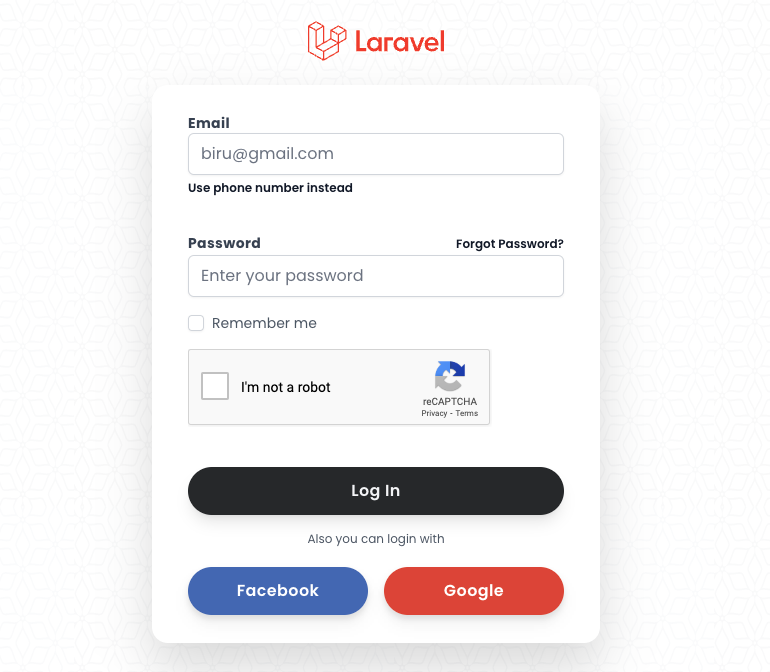
Here is the sample login page i made based on Laravel Jetstream and Fortify
If you have successfully place the script, it should display the checkbox like this
Lets say we dump the request, we should see g-recaptcha-response appended along with form input.
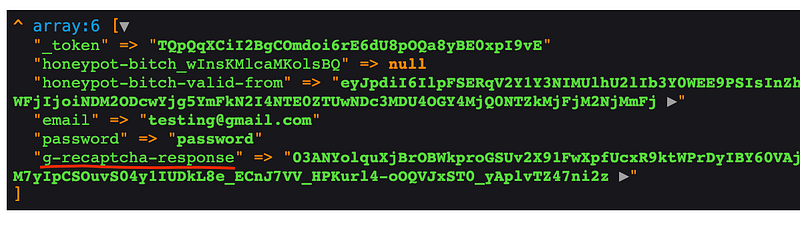
Now, we can proceed to validate the token which is valid or not.
Create a Laravel Rule
Based on documentation, each ReCaptcha response token is valid for 2 minutes and can only be verified once to prevent replay attacks. If you need a new token, you need to refresh or re-run the ReCaptcha verification.
After you get the response token, you need to verify it within 2 minutes with ReCaptcha using the following API to ensure the token is valid.
https://www.google.com/recaptcha/api/siteverify (GET)
Only 2 parameter are required
secret - Secret Key.
response - Token fromg-recaptcha-response
And the response should be just true or false
{
    success: true | false
    error-codes: [refer here]
}
Now we know validation step, lets create a validation rule name ReCaptchaRule
php artisan make:rule ReCaptchaRule
And paste the below code.
class ReCaptchaRule implements Rule
{
    ....
    /**
     * Determine if the validation rule passes.
     *
     * @param  string  $attribute
     * @param  mixed  $value
     * @return bool
     */
    public function passes($attribute, $value)
    {
        $response = \Http::get("https://www.google.com/recaptcha/api/siteverify", [
            'secret' => config('services.recaptcha.secret'),
            'response' => $value
        ]);

        return $response->json('success');
    }

    /**
     * Get the validation error message.
     *
     * @return string
     */
    public function message()
    {
        return 'Unable to validate recaptcha token';
    }
}
Note that, this rules only cater true or false condition based on the response. If you want to have extra validation, you may customize it
Add Validation rule to the Login logic
Add extra validation in your controller logic to use the ReCaptchaRule
public function login(Request $request)
{
    ....
    $request->validate([
        'g-recaptcha-response' => ['required', new ReCaptchaRule]
    ]);
    ...
}
For more convenience, i recommended to put any validation in the Request class, so that your controller won’t get messy
Testing and validation
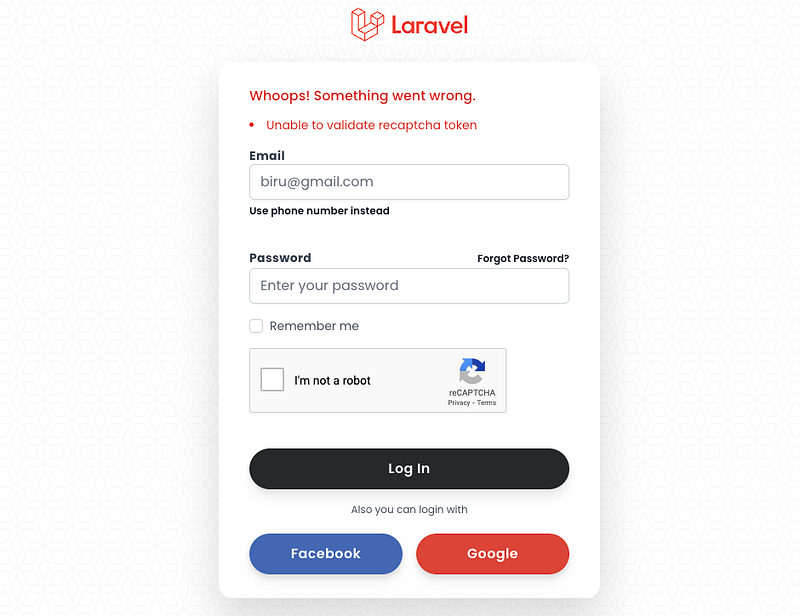
By the time you submit the form, you will be able to utilize the ReCaptcha functionality successfully. If it is not working, i suggest you to debug or dump the request from the verification API to see the error messages or error codes provided in the response.
Here are the sample of when we are unable to validate the recaptcha token.
Just like that. Simple~ Hope it helps
References
Found this helpful?
If this article saved you time or solved a problem, consider supporting — it helps keep the writing going.
Originally published on Medium.
View on Medium