It adds captions, annotations and pointer cues before you ever open a video editor.
We spend a lot of time explaining things on screen: product walkthroughs, internal demos, bug reproductions, recorded updates, quick how-to clips. The painful part usually starts after the recording.
The explanation itself goes fine. Then I open the editor and start rebuilding clarity I already had five minutes earlier. A subtitle here. An arrow there. A cursor effect because nobody will know where to look otherwise. Another export because the timing feels slightly off.
That is why Capnot caught my attention.
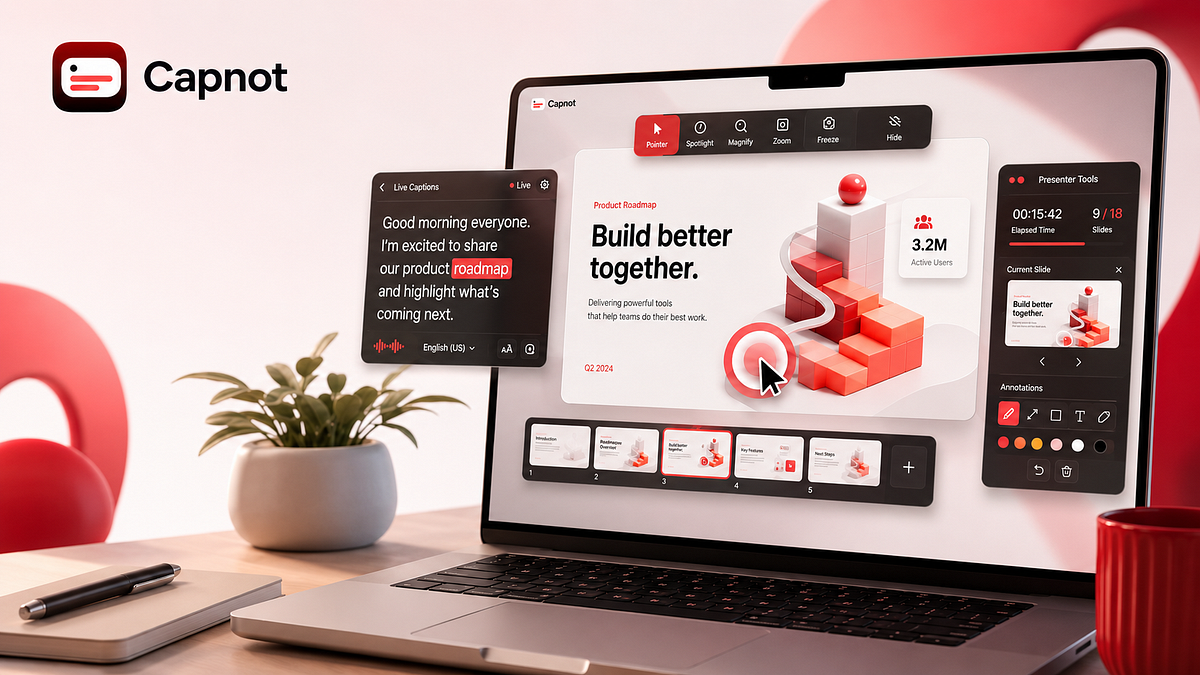
It is a macOS menu bar app built by my colleague achan on X and the pitch is simple: put the explanation layer directly on screen while you are recording, presenting, or sharing. Instead of cleaning up attention in post, you do it in the moment.
That is a much better idea than it sounds on first read.
What Capnot actually is
Capnot is not a screen recorder. It is not a video editor. It is not another big “creator suite” trying to swallow your whole workflow.
According to the official site and FAQ, it is an overlay tool for macOS. It puts captions, annotation tools and pointer effects directly on top of your display so whatever recorder or meeting app you already use can capture the result.
That narrow scope is part of why it makes sense.
You keep your existing setup:
- QuickTime if you want a fast local recording
- OBS if you need more control
- Loom if you already use it for async updates
- Zoom, Meet, or Teams if this is a live screen share
Capnot sits above that stack and handles the part that usually goes missing: making sure the audience knows what you are saying and where they should be looking.
The feature set is more complete than the headline suggests
The homepage does not just show “captions.” It breaks the app into three layers, and that is the right way to think about it.
1. Caption tools
This is the part most people will notice first.
Capnot includes:
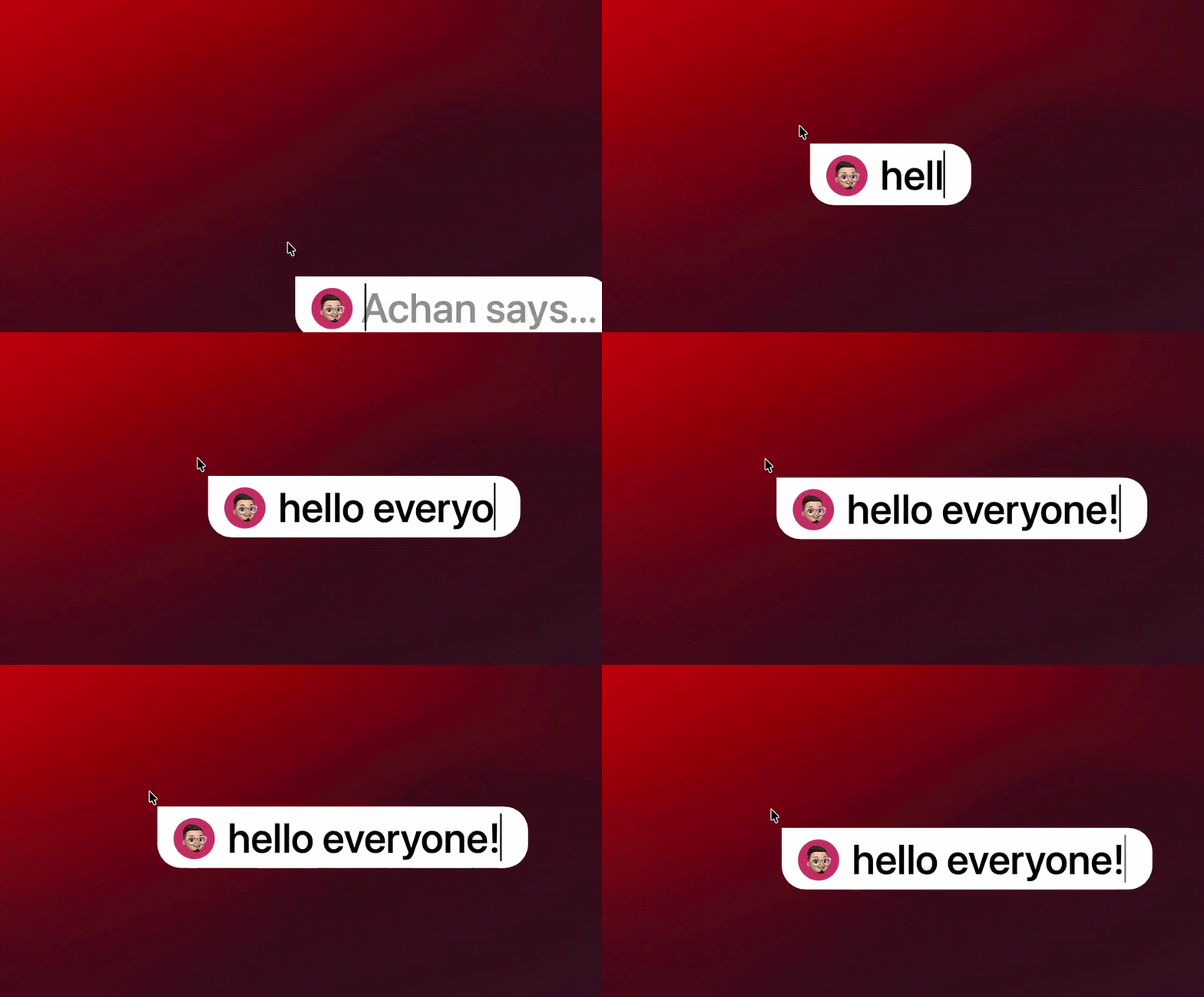
- Bubble Chat for text that follows your cursor and can be planted near the thing you are explaining
- Dialogue Mode for a presenter-style lower third with name, photo and subtitle panel
- Subtitle Bar for a cleaner bottom-of-screen caption strip
- Live Captions for real-time speech transcription
That range matters because different recordings need different kinds of text. A quick product demo does not need the same caption style as a conference talk or an internal walkthrough.
Bubble Chat is probably the easiest feature to understand on sight. You type, the caption appears next to the object you are talking about and your viewer does not have to decode vague narration like “look at the setting near the top-left area.”
2. Annotation tools
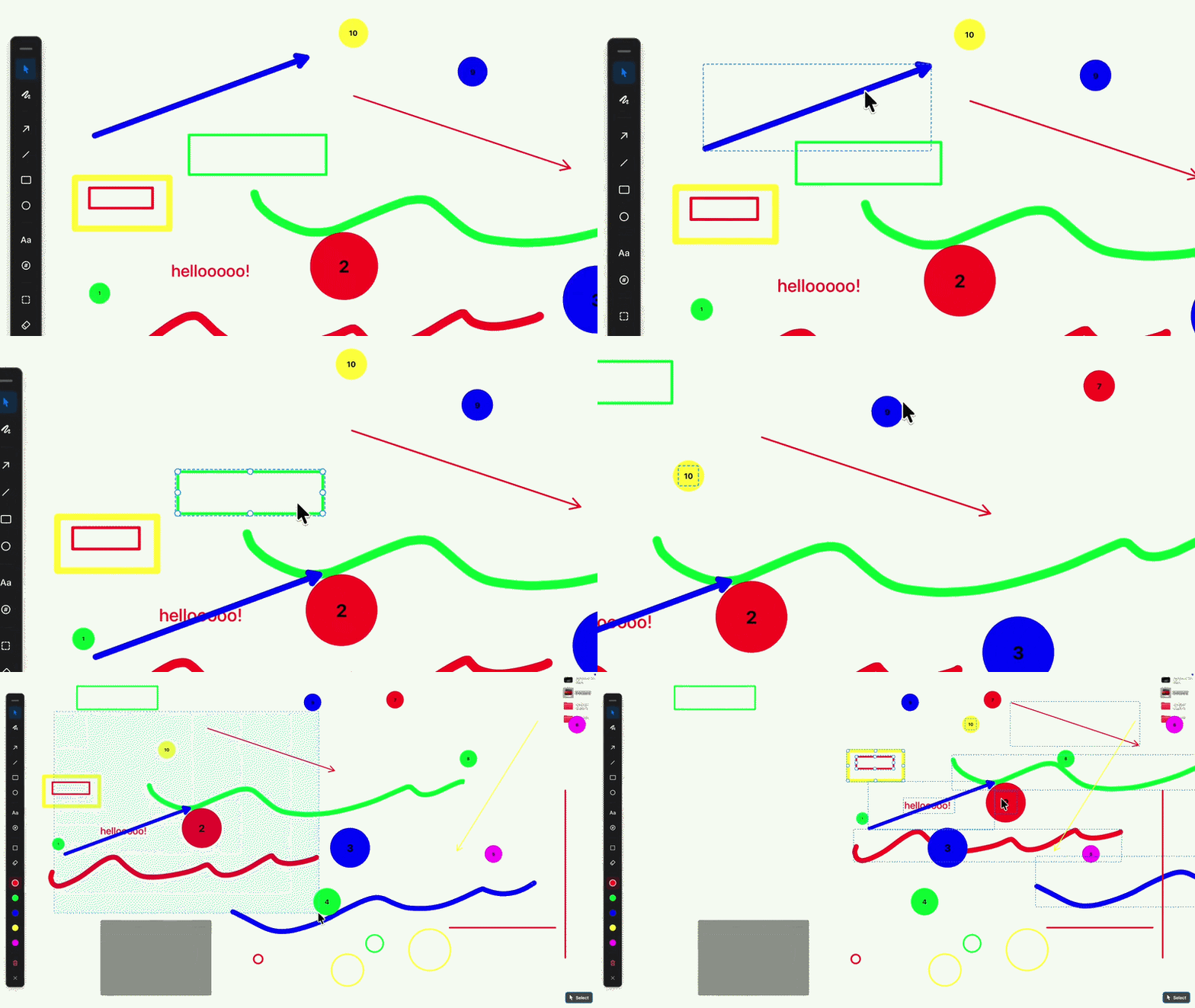
Capnot also includes live annotation overlays. From the site and FAQ, the toolset covers:
- freehand drawing
- arrows
- lines
- rectangles
- circles
- text labels
- counters
- blur/redaction support
- eraser and clear controls
This is a bigger deal than it sounds if you record software demos often. Screens are dense now. You are rarely explaining one giant obvious button. You are explaining crowded dashboards, little toggles, nested settings, or code changes that need one visual nudge to make sense.
An annotation layer that is already live on the screen is much more useful than reopening the same clip later just to draw an arrow you already knew you needed.
3. Pointer tools
The pointer stack is what makes the tool feel more complete.
Capnot ships with:
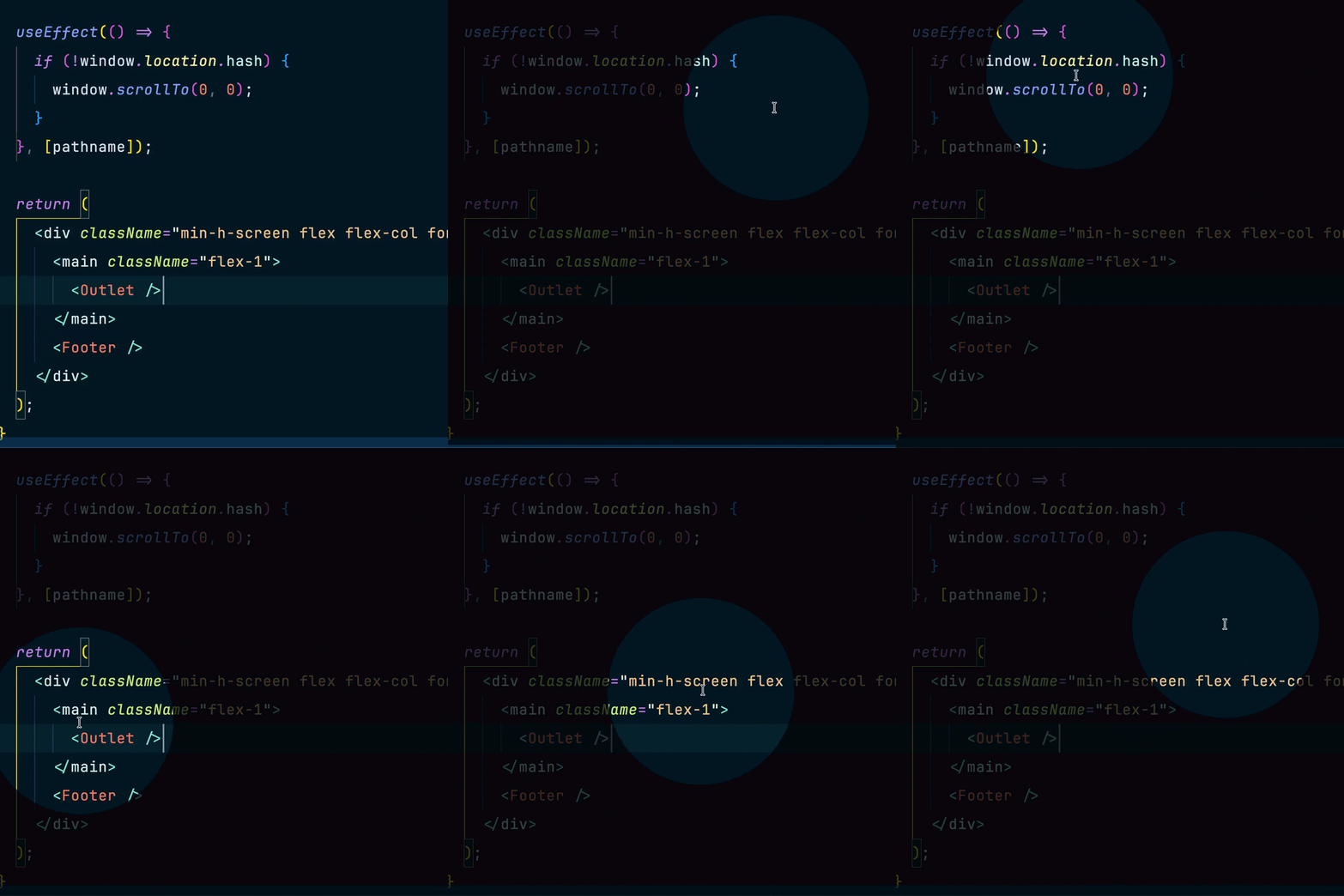
- Spotlight Mode
- Laser Pointer
- Cursor Highlighter
- Magnifier
That covers the basic attention problems almost every screen share has.
Sometimes the whole screen is too busy and you need everything else to fade back for a second. Sometimes the cursor is technically visible but still too easy to lose. Sometimes the detail is simply too small and a quick local magnification is better than zooming the whole display.
The most useful use cases are obvious
The official site lists several audience types, and I think the product fit is pretty clear.
Screen recorders
This is the strongest fit.
If you record tutorials, product walkarounds, QA repro clips, or internal explainers, Capnot removes the “I will fix it in post” trap. You can record with the captions and emphasis already visible instead of creating a second editing task for yourself.
Presenters
If you give demos or talks, subtitle overlays and pointer cues help the audience keep up without turning every slide into a wall of text. Dialogue Mode and Subtitle Bar make sense here because they look more structured than a floating bubble.
Remote workers
This one is underrated. The site specifically calls out the case where your mic is off or your environment is noisy. Being able to type a visible on-screen caption during a shared screen is a small thing until you need it. Then it is the whole thing.
Educators
Teachers, trainers and anyone walking through software live can use the annotation and pointer tools the way they would use a whiteboard marker. Circle this. Point here. Magnify that. Keep moving.
Streamers
I think this is the least urgent use case for me personally, but it still makes sense. Live emphasis without scene switching is useful when you want to keep momentum.
The setup path looks refreshingly light
This part matters because tools like this become annoying the second the setup starts feeling ceremonial.
From the homepage and FAQ, the setup story is straightforward:
- Visit the official Capnot site.
- If you want to test it first, the FAQ says there is a free trial available through the Mac App Store with a short session limit.
- If you already know you want it, the official checkout page sells the full app.
- Launch it from the menu bar.
- Grant the permissions you actually need for the features you want to use.
Those permissions are worth spelling out because they are normal for a tool sitting at the system overlay layer:
- Accessibility for global hotkeys and cursor tracking
- Screen Recording for Magnifier
- Microphone + Speech Recognition for Live Captions
Everything else in the app does not need a giant onboarding ritual. That is exactly how this kind of utility should behave.
The pricing is simple, and that helps
This was one of the details missing from the first draft, so I checked the official purchase flow directly.
On May 31, 2026, the official Capnot checkout page lists Capnot for macOS at $12.99 as a one-time charge.
That is the kind of pricing I want for a focused utility.
No subscription math. No feature gating disguised as tiers. No account creation just so a menu bar app can put words on your screen. The homepage and FAQ repeat the same message: one-time purchase, no subscription, no account required.
For this category, simple pricing is not just nicer. It is part of the product philosophy.
The privacy story is stronger than I expected
Live caption features usually drag some cloud baggage behind them. Credits. usage limits. another dashboard. vague promises about data handling.
Capnot goes the other way.
The FAQ says Live Captions uses Apple’s on-device Speech Recognition API. It also says no audio goes to the cloud, no analytics or telemetry are collected and what you do in the app stays on your Mac.
That matters if you are recording internal demos, explaining customer issues, or screen sharing sensitive screens. Even when nobody is discussing privacy explicitly, local processing changes how comfortable the tool feels in real work.
Small tools earn trust through details like this.
It also helps that the app knows what it is not
One of the cleanest parts of the FAQ is the section that explains why your overlays might not appear in a recording. The answer is not hand-wavy. It tells you to use display recording rather than window recording because Capnot renders separate system-level overlay windows.
That is useful product writing, because it tells you exactly where the boundary is.
Capnot does not record your screen.
It does not replace OBS.
It does not replace a full editor.
It does not pretend to be an everything app for creators.
It handles the live visual explanation layer. Your recorder handles capture. Your editor, if you still need one, handles polish afterward.
That separation makes the tool easier to trust.
Why I think this is worth promoting
A lot of side projects feel like feature piles. Capnot does not read that way.
It feels like somebody got annoyed by a real workflow problem and stayed focused long enough to build the missing layer properly:
- visible text without app switching
- live annotations without post-production
- pointer emphasis without hunting through settings
- privacy that matches the sensitivity of screen sharing
- pricing that does not punish you for liking the tool
That is a solid combination for a spare-time product. It reads like software built by someone who actually records things, gets annoyed by small delays and would rather remove a step entirely than write a prettier excuse for keeping it.
I also like that the developer’s public profile does not overperform the story. If you look at
@tapitapeh, the vibe is basically “building things,” with Capnot and another Mac app linked from the bio. That tracks with the product itself. It is not trying to manufacture a movement. It is trying to solve a particular problem well.
There is a lot to be said for that.
If you want the short version
Use Capnot if your screen demos are clear while you are speaking but messy again by the time you export them.
The app is a good fit if you want:
- on-screen captions while you record or present
- live annotations without opening another app
- pointer tools that make your cursor and focal point easier to track
- a local-first speech workflow
- a low-friction menu bar utility instead of another subscription
Skip it if you are looking for a full recorder, a heavy video editor, or a complete streaming production suite. That is not what it is trying to be.
But if what you want is a cleaner explanation layer during the moment itself, this is the kind of small tool that earns a place on a Mac.
Website: capnot.app
Developer: @tapitapeh on X
Buy: Official checkout